Flash without the cable.
Choose a ROM ZIP or an image on your computer. Transfer it over Wi-Fi, review it and install it from the browser.
 Recovery
Independent Android recovery
A native recovery environment for flashing, backup, storage, networking, root management, device-aware OTA updates, and tools that grow at runtime.
Mobile internet. Even in recovery.Use your SIM without Wi-Fi. On supported device builds.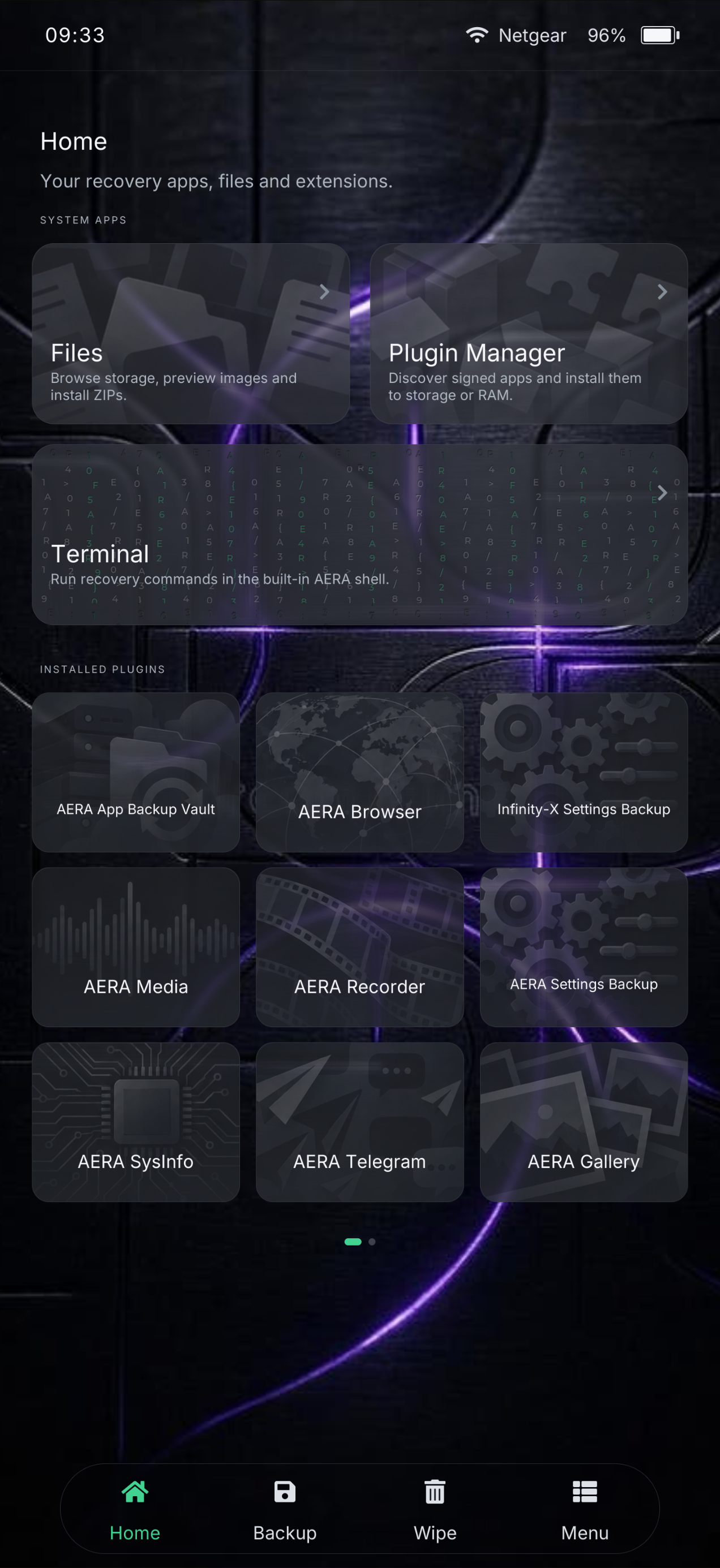
Feature atlas
Explore every core workflow, from decryption and storage to OTA, root and fastbootd.
Built into AERA Recovery
Your recovery. Controlled from your computer.
Flash ROMs, manage files, back up your phone and open a recovery terminal directly from your browser. Over Wi-Fi or USB. No desktop app required.
The browser workspace
Review the target. Confirm the operation. Follow the progress.
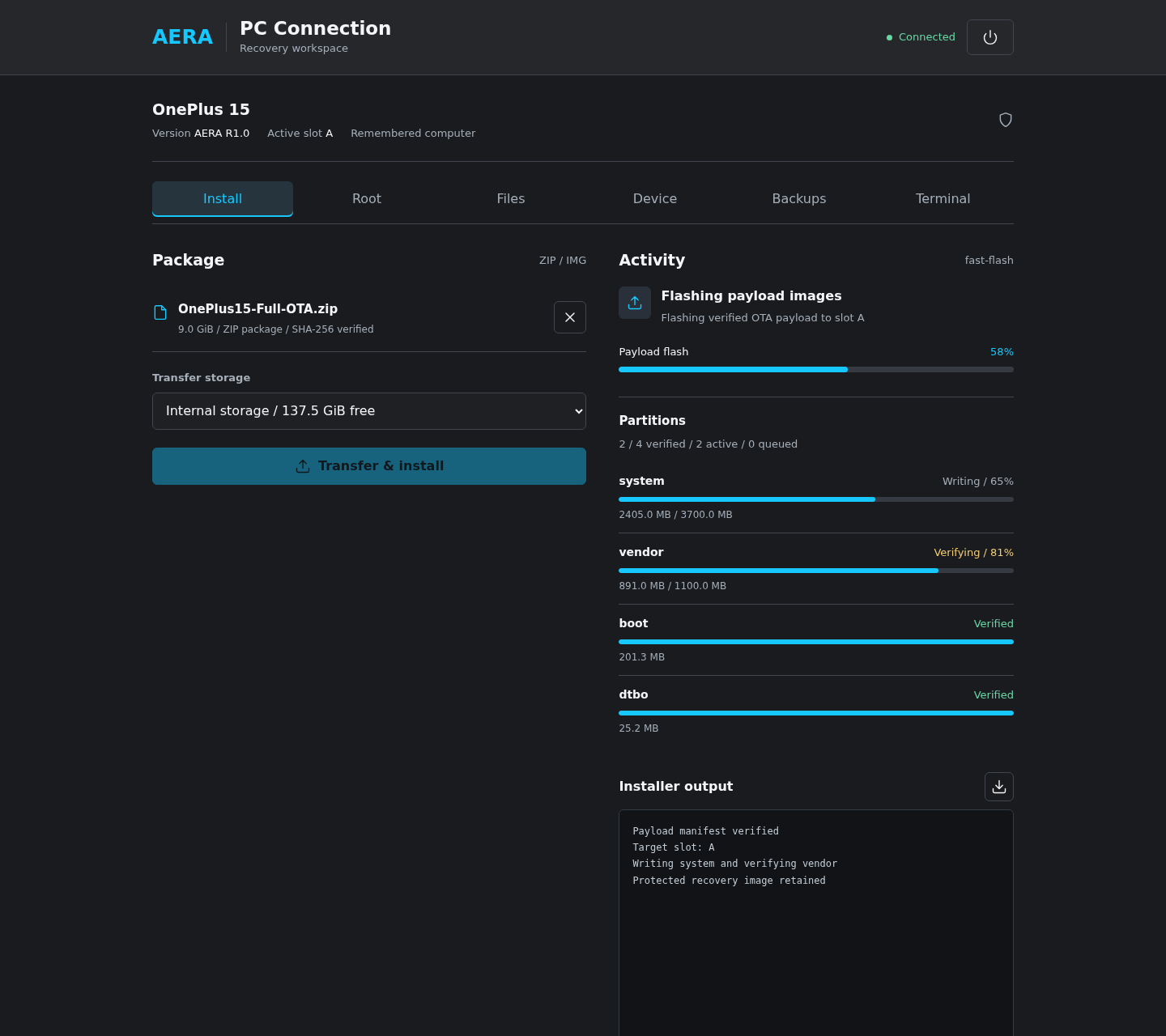
Choose a ROM ZIP or an image on your computer. Transfer it over Wi-Fi, review it and install it from the browser.
Stream a recovery backup straight to a folder on your computer, then restore it from there. Computer backups are Beta.
A dedicated browser workspace for files, root, backups, a live terminal and diagnostics. Real recovery tools, built for your computer.
Review ZIP metadata, target slot and rollback information before installing. Choose the standard installer or experimental fast payload flashing. Select partitions or extract images from supported payload ZIPs, with applicable preservation options. With Wi-Fi connected, AERA can also download a ZIP or IMG from a direct link before installation; download pages and sign-in links are not supported.
Upload multiple files, create folders, rename and delete entries. Save files or whole folders to your computer, select entries for batch actions, or install a ZIP or image already on the phone. Folder downloads use a supported desktop browser's folder picker, without creating a ZIP on the phone. Follow uploads on either screen and cancel from either side.
On builds with Root Manager enabled, inspect either slot, find matching KernelSU, KernelSU Next or SukiSU Ultra releases, patch the target, restore a root backup or install the manager APK.
Open an interactive root shell in the Terminal tab, with full-screen mode and tools such as htop. Inspect processes, read logs or run recovery commands through the same approved Wi-Fi or USB connection. Commands run on the phone, not on your computer, and have full recovery privileges.
Set up SMB or SFTP from the Backups tab and save the connection in recovery. SFTP supports passwords or private keys. Use available internal storage, USB drives or mounted network storage for both recovery and App Backup Vault backups, instead of streaming to the computer.
Check battery, memory, kernel and slot information. Download recovery, Logcat and kernel logs, or the automatically captured flash-log ZIPs for an installation bug report. Reboot to Android, recovery, the bootloader or fastbootd where supported.
Backup and restore
Choose Recovery for native partition backups or Apps for App Backup Vault. App backups require the Vault plugin and accessible data for the selected Android user. Save to this computer, internal storage, a mounted USB drive or network storage. The destination is independent of how you connected: Wi-Fi and USB expose the same tools.
Pick a local folder in a supported desktop Chromium browser and keep the page open. AERA streams authenticated blocks directly to or from that folder while showing transferred MB and the current MB/s rate. Device-storage backups remain available without browser folder access.
Restore a native backup or encrypted App Vault snapshot directly from the computer, or transfer the complete source to device storage first so the restore can continue without the browser.
Follow the same operation on phone and computer, including the final file-save step. Cancel backups from either side; stopping a restore requires additional confirmation and does not undo data already restored. Interrupted native computer backups stay marked incomplete. Native checksum preferences and Vault integrity checks use the existing recovery engines.
Beta Computer backups are currently Beta. Keep the browser connected and check that the operation finishes successfully. A disconnected direct restore can leave partially restored data; stay in recovery and complete the restore before booting Android.
How to connect
PC Connection is off by default. Unlock recovery and open Menu > PC connection. USB works without Wi-Fi and uses ADB from Android Platform Tools on your computer. The optional auto-enable setting starts PC Connection after unlocking.
Unlock recovery, then open Menu > PC Connection and enable it. AERA shows the connection addresses and certificate fingerprint.
Wi-Fi: join the same local network as your computer.
USB: connect the cable and run this on your computer:
adb -d forward tcp:8443 tcp:443Wi-Fi: open https://aera.local or the HTTPS address shown in recovery.
USB: open https://localhost:8443.
Compare the SHA-256 certificate fingerprint with the device before trusting the certificate. Both connections use the same workspace and device certificate.
Confirm the new browser physically on the device. Remember it only if you want approval to survive a recovery restart.
In the workspace, open Device > Connection certificate > Certificate to download the device authority. Compare its SHA-256 fingerprint with the one shown in recovery, then import it manually into the appropriate certificate store:
The browser cannot install trust automatically. Device approval is still required after import. The device authority persists across recovery restarts; a data wipe or removal of its saved authority requires a new import.
Runtime extensions
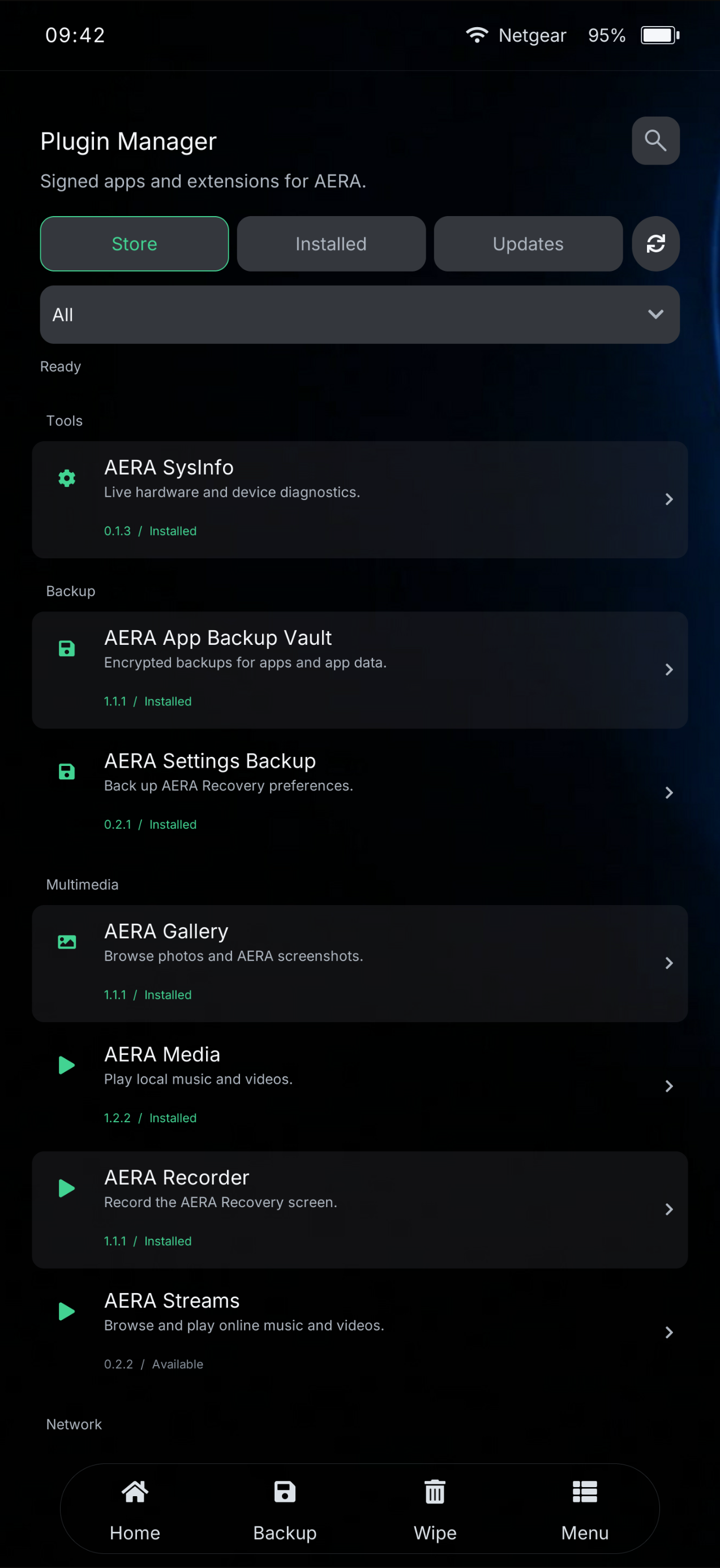
Signed packages install to storage or RAM without rebuilding AERA. Updates are detected in the launcher and may be installed automatically.
Current builds
codename
Verify the device codename, build channel and SHA-256 checksum before flashing.
Project activity
Build channels
Website · 0 completed
Recovery · 0 completed
Anonymous aggregate statistics only. No visitor profiles or unique-user tracking.
The project
AERA is a recovery environment with its own interface, update path, and extensible tool ecosystem. It is developed in the open and tested on real devices.
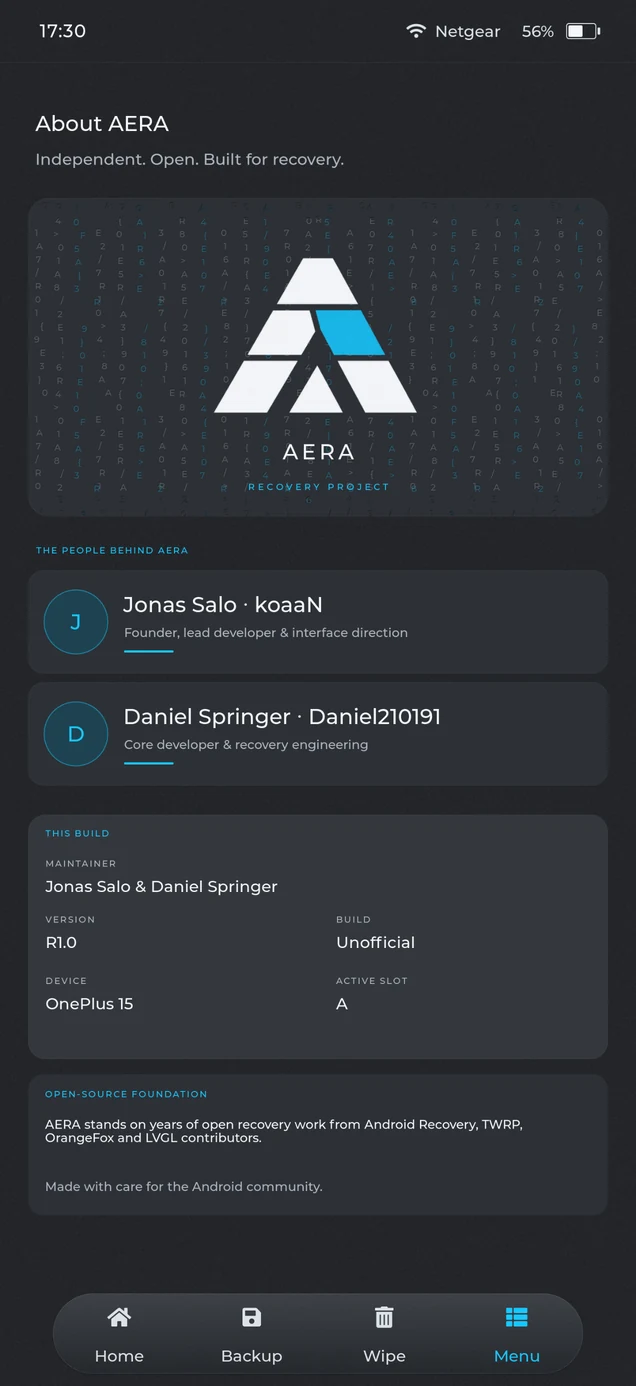
The people behind AERA
Founder, lead developer and interface direction
Core developer and recovery engineering
AERA stands on years of open recovery work from Android Recovery, TWRP, OrangeFox, LVGL, and their contributors.